Changes view: Move Detection and Word Wrap
SmartGit’s Changes view detects moved blocks within a file and across files. It also recognizes moved fragments inside larger modified, added, or removed blocks – even when code is reordered, split, extracted, inlined, or partly edited. It links the original and new locations, preserving inline changes so reviewers can see what moved and what changed.
Move detection is enabled by default through the persistent Detect Moves view option (from the Hamburger menu). Moved ranges receive dedicated highlighting in side-by-side and unified views. Detection runs progressively in the background after the ordinary diff, so the diff appears quickly while move matches are refined.
Long lines are now easier to read in the Changes view: Word-Wrap wraps them to the available pane width and is available from the toolbar in both unified and side-by-side layouts. Its state is remembered.
In side-by-side view, continuation lines retain the original indentation and are marked with wrap arrows. This behavior can be disabled with the low-level property changesView.wordWrap.indentWrappedLines.
Agent Integration
Refine commits with agents
Select a commit or branch in Graph or History, then ask Codex or Claude to fix a bug, add a test, or improve the code. SmartGit supplies the relevant Git context automatically.
Each agent task gets its own branch, dedicated worktree, and isolated configuration, so agents can work in parallel without touching your current branch or files.
You coordinate and review the work: inspect each result in the Graph, ask for refinements, and cherry-pick the commits you want into your branch.
Make your branches easier to review
Give an agent a well-defined Git task that would be tedious by hand. A particularly useful example is rewriting a messy branch into appropriate feature commits: select the tip of the branch, describe the outcome, and let the agent prepare the history rewrite on its isolated branch. This is one possible workflow - not a built-in one-click command.
SmartGit keeps the result reviewable. The agent preserves recovery information, validates the rewrite, and reports its decisions. Review the ordinary commits and compare the final content with the original tip. If it looks right, move your feature branch to the reviewed result and continue working from there.
Agent results remain Git results. SmartGit keeps the context, isolation, visibility, review, and final integration under your control.
Observe and steer from the Agent view
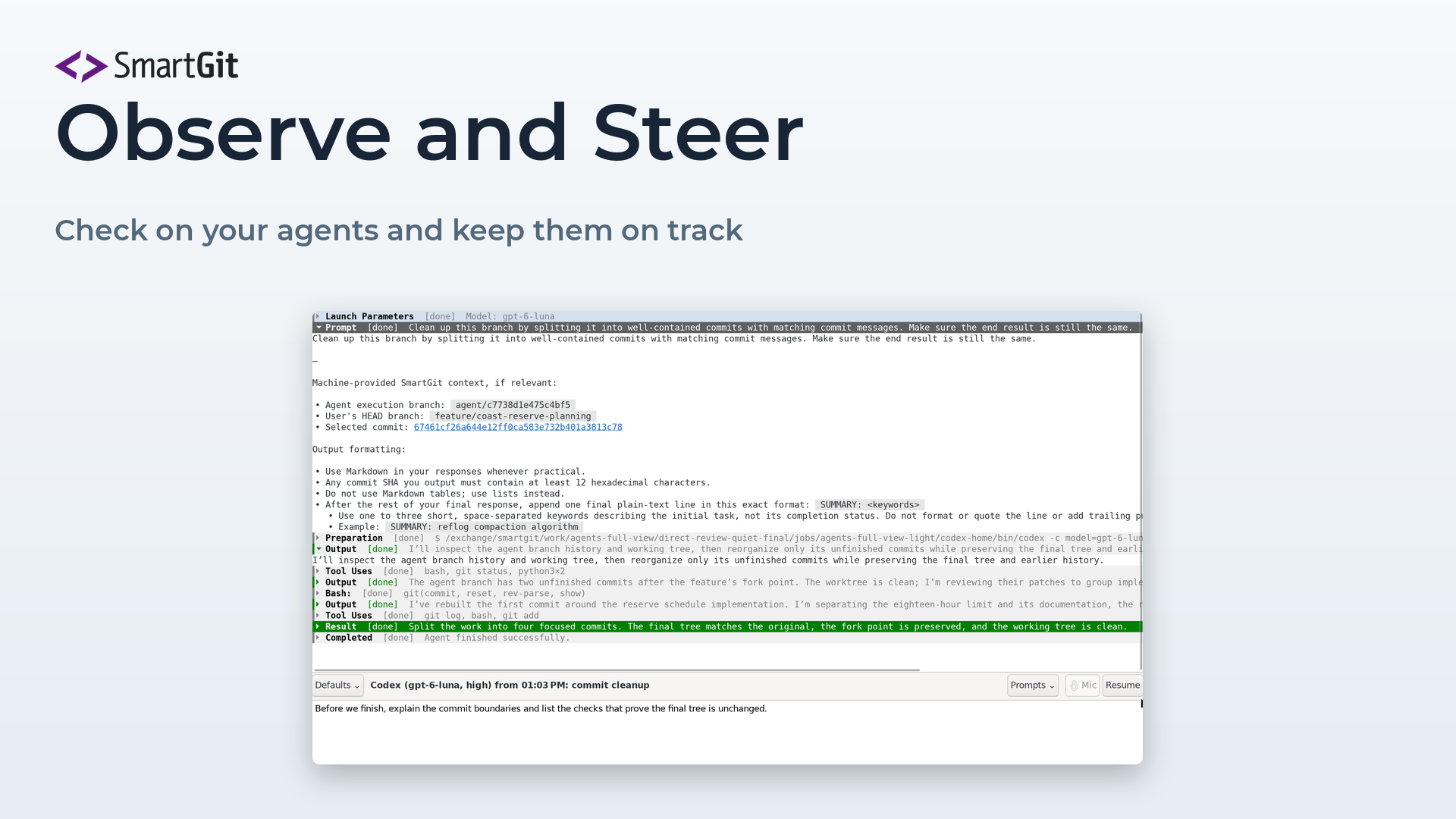
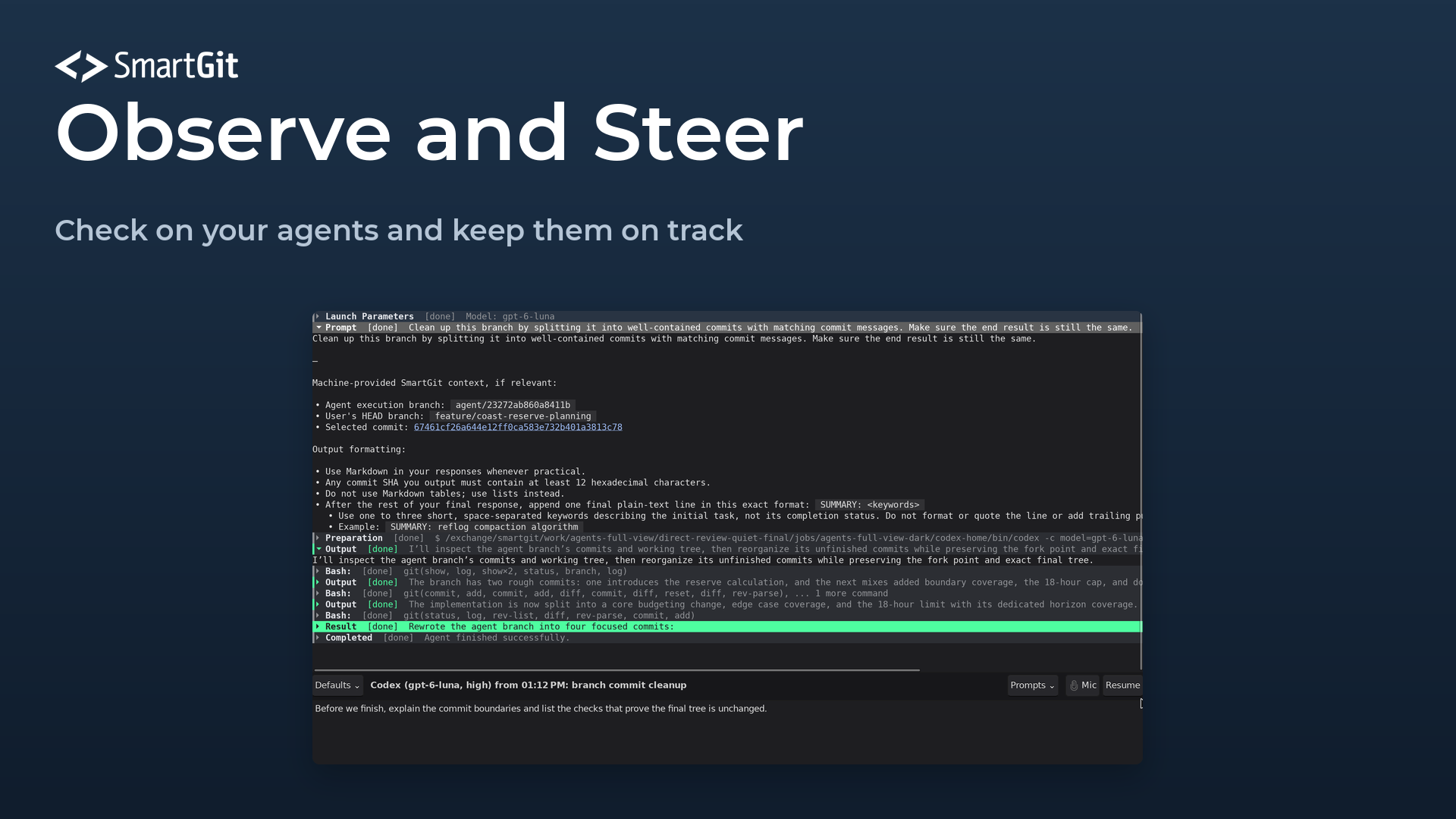
The Agent view makes autonomous work visible instead of turning it into a fire-and-forget hand-off. A session list keeps running, completed, failed, and unread conversations together with their provider, prompt, branch, and model information.
Follow structured live output, including the prompt, launch parameters, work state, tool activity, commands, file changes, and the agent’s final result. Expand or collapse sections, wrap long lines, resize the editor and output panes, and follow commit links back into the Log.
The same conversation provides Start, Stop, Steer, and Resume controls. Send a correction while Codex or Claude is active, stop a run while retaining its result, or reopen the native session later and continue from where it left off. Choose a model preset or tune the model settings for a new run or follow-up; SmartGit also remembers prompt and steering history.
SmartLinks
SmartLinks let you share a link to a commit, so others can open the same commit in SmartGit or on the web and join the conversation.
When you paste a SmartLink into SmartGit, SmartGit fetches or clones the repository if necessary, then selects the linked commit.
You’re in control of what you share:
- Choose maximum convenience to make the link truly portable, so others can clone the repository if they don’t already have it.
- Choose to stay fully private: the link contains no repository URL or other sensitive information, so it’s safe to share with anyone who already has the same repository checked out.
Drag and Drop in the Standard Window
Managing your branches in the Standard window just got more intuitive.
Drag and drop branches between the Graph and the branches list. While dragging a branch, hover over another branch to reveal it in the Graph. This makes it easier to move a branch to a commit farther away in the Graph.
Commit without Staging improved
Committing without staging is now easier. When you commit one selected file from several changed files, SmartGit asks whether to commit only that file or all visible files.
If you select multiple changed files, SmartGit commits them without asking.
Standard window: Commit details with Branch and Tag information
When you select a commit in the Log graph of the Standard window, SmartGit shows:
- which branches contain it as a first-parent ancestor,
- which branches it has already been merged into, and
- the closest tag for the commit’s file state.
Graph: Focus on a branch or see the bigger picture
Choose how much of the graph to see: focus on the current branch, see your local branches as usual, or use a compacted view to see the bigger picture. The compacted view collapses commits between branch splits and merges while keeping the branch relationships visible.
Graph: more Intuitive Commit Reordering
Reordering commits with drag and drop is now easier, even when commits from other branches appear alongside commits on the current branch.